
How to Stop Robocalls and Spam Calls on Google Voice for Business
Google Voice can be a convenient way for a small business to have a dedicated business phone number without using a personal cell number. But once that number is publicly listed on your website, Google Business Profile, social media accounts, directories, and other business listings, you may start receiving something you definitely didn’t ask for:
Robocalls. Lots of them.
Some are generic marketing calls. Others claim your Google listing isn’t verified, your business isn’t appearing properly on Google, or that you need to take immediate action to prevent customers from losing access to your business.
If you’re using Google Voice as your primary business line, those repeated calls can quickly become disruptive.
The good news is that Google Voice has several tools that can significantly reduce the interruption.
Here is how to set them up.
Why Are Business Google Voice Numbers Getting So Many Spam Calls?
Robocall technology makes it inexpensive for scammers and telemarketers to make huge numbers of calls automatically. The Federal Trade Commission notes that scammers can also manipulate caller ID information, making a call appear to come from a legitimate company or even a local phone number.
For a business owner, the problem can be worse because your phone number is intentionally public.
Your business number may appear on:
- Your website
- Google Business Profile
- Google Maps
- Social media
- Yelp and other directories
- Online business databases
- Advertising
- Public business registrations
You need legitimate customers to be able to find the number, so simply hiding it isn’t always practical.
Instead, the goal is to filter and screen the calls without making it difficult for real customers to contact you.
Step 1: Turn On Google Voice Spam Filtering
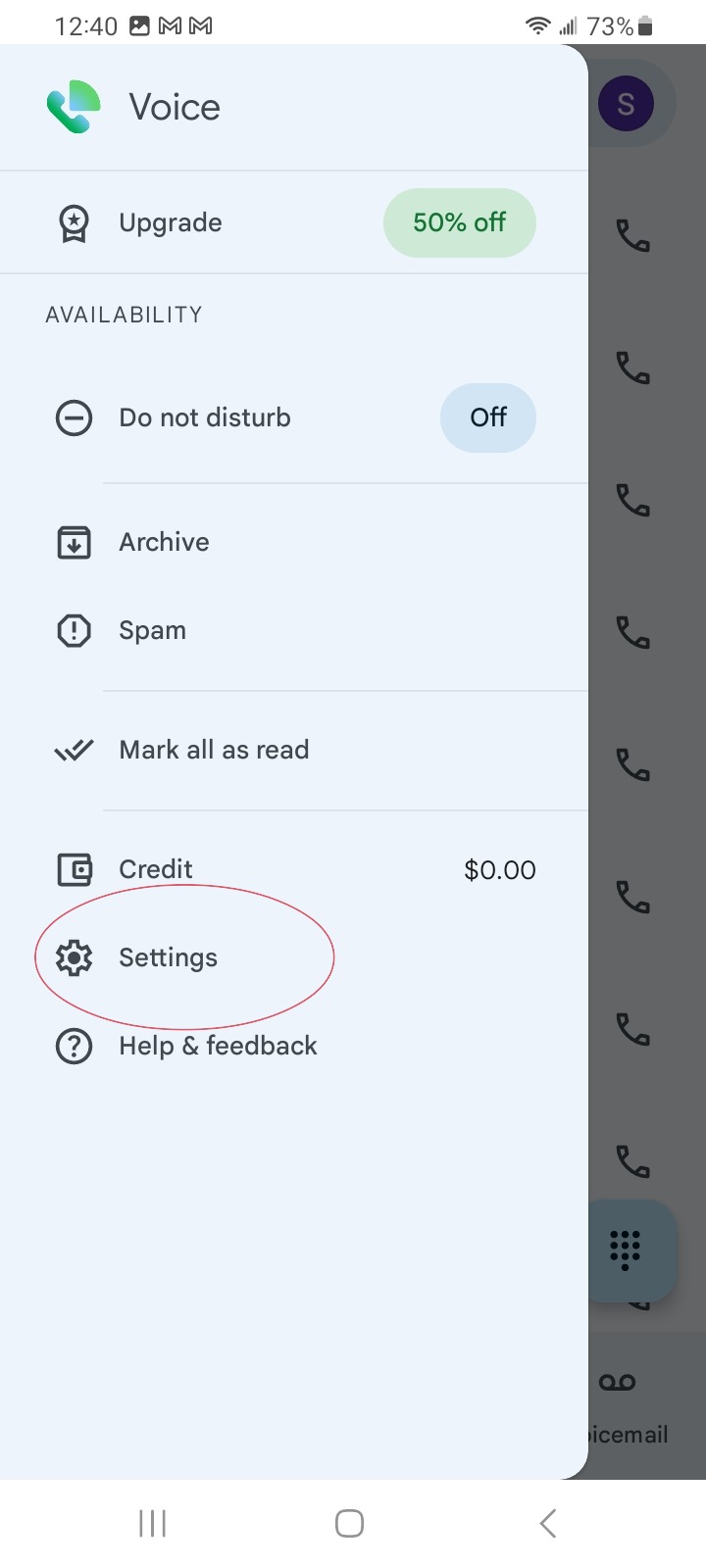
The first setting every business using Google Voice should check is Google’s built-in spam filter.
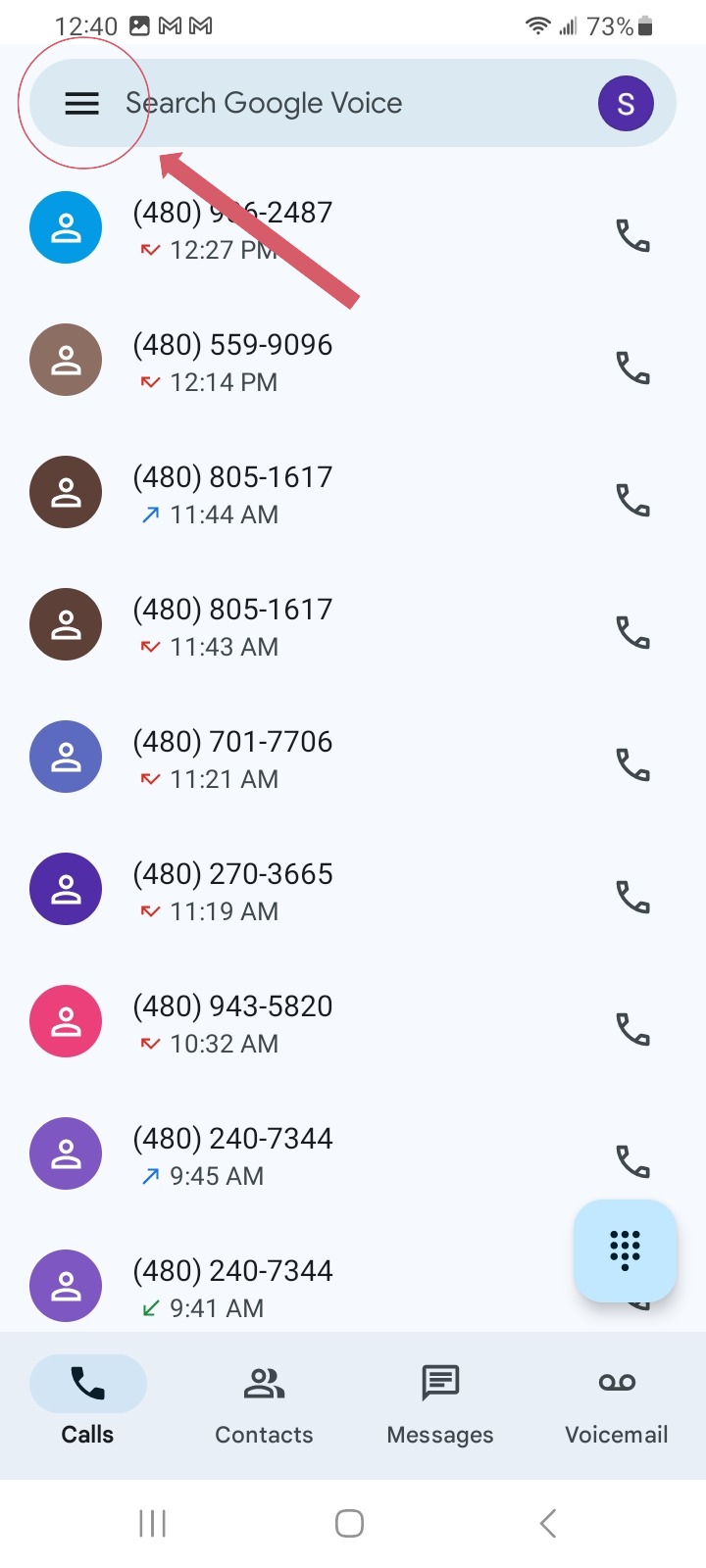
On the Google Voice mobile app:
- Open Google Voice.
- Tap the menu icon.
- Select Settings.
- Scroll to Security.
- Turn on Filter spam.
Google Voice can identify suspected spam calls and automatically move communications from known spam numbers into the Spam folder.
Screenshot suggestion: Add a screenshot here showing the Google Voice Settings screen with Filter spam enabled.
This should be your first line of defense.
However, spam filtering isn’t perfect. Robocallers frequently change or spoof the phone numbers they’re calling from, so additional screening is helpful.
Step 2: Turn On Call Screening
For a business phone, this may be one of the most useful Google Voice features.
Google Voice can require unknown callers to say their name before your phone actually connects the call.
To enable it:
- Open Google Voice.
- Go to Settings.
- Find the Calls section.
- Turn on Screen Calls.
Once call screening is enabled, callers who aren’t recognized through your contacts will generally be asked to state their name before being connected. You can then decide whether you want to accept the call or send it to voicemail.
For legitimate customers, saying their name only takes a moment.
For automated spam systems, that extra step can create a useful barrier.
Screenshot suggestion: Show the Screen Calls option turned on.
What happens when someone calls?
Google Voice lets you hear who is calling before accepting the call.
You can then:
- Press 1 to accept the call.
- Press 2 to send the call to voicemail.
This gives a small-business owner much more control without completely blocking people who aren’t already saved as contacts.
Step 3: Mark Spam Calls as Spam
When an unwanted call makes it through, don’t simply delete it.
Mark it as spam.
From your Google Voice call history:
- Open the suspicious call.
- Look for the spam warning or additional options.
- Select Confirm spam or Mark as spam.
Once a number is confirmed as spam, future calls and messages from that number can automatically be routed into the Spam folder.
This is more useful than simply clearing your call history.
Step 4: Block Repeat Offenders
If the same number continues calling, block it.
In Google Voice:
- Open Calls.
- Select the unwanted caller.
- Open More Options.
- Choose Block number.
- Confirm the block.
Google says calls and messages from a blocked number will be marked as blocked, and you will no longer receive messages from that number.
There is one limitation.
Blocking individual numbers isn’t always effective against large robocall operations because scammers can continually switch or spoof phone numbers.
That’s why blocking should be used together with spam filtering and call screening, rather than as your only strategy.
Step 5: Be Careful With Calls Claiming to Be Google
This is particularly important for small-business owners.
You may receive calls claiming that:
Your Google Business Profile isn’t verified.
Or:
Customers can’t find your business unless you take action.
Or:
Your Google listing is about to be suspended.
Some callers may then try to sell you a service, obtain account information, or request payment.
Google does sometimes make automated calls to businesses to confirm things like business hours or other Business Profile information.
However, Google says it will never ask for payment, credit card information, or your account password during these calls.
Google also states that it will not require you to pay to maintain or verify your Google Business Profile.
So if someone calls and says you must pay to:
- Keep your business on Google
- Verify your Google Business Profile
- Prevent your listing from being removed
- Maintain your position in Google Search
- Guarantee your business a particular ranking
Do not provide payment or account information.
Hang up and independently check your Business Profile through your own Google account.
Step 6: Don’t Interact With Automated Sales Calls
Sometimes a robocall will say:
Press 1 to speak with a representative.
Or:
Press 2 to be removed from our list.
That second option may sound tempting.
The FTC’s recommendation is simpler: hang up.
The FTC warns that pressing buttons or engaging with an illegal robocall may result in additional unwanted calls rather than removing you from the caller’s database.
If it’s clearly an unwanted automated sales call, don’t interact with it.
Step 7: Use Google Voice Custom Call Rules When Necessary
Businesses that receive a high volume of calls can take things further by using Google Voice’s custom call-forwarding rules.
On a computer:
- Open Google Voice.
- Select Settings.
- Select Calls.
- Find Custom call forwarding.
- Select Create a rule.
Google Voice allows rules for specific contacts or contact groups. Depending on the rule, calls can be forwarded to selected numbers, sent directly to voicemail, given a custom voicemail greeting, or subjected to call screening.
This can be particularly useful if you already have regular customers, vendors, employees, or clients saved as contacts.
Step 8: Consider Sending Calls to Voicemail Outside Business Hours
There is no reason a robocaller should interrupt your evening.
Google Voice includes a Do Not Disturb option that can temporarily send incoming calls directly to voicemail. Certain Google Voice business subscriptions can also work with Google Calendar working hours.
A business can use this to establish clearer boundaries:
During business hours:
Allow screened calls.
Outside business hours:
Send calls directly to voicemail.
A legitimate customer can still leave a message.
A robocaller doesn’t need your immediate attention.
What About the National Do Not Call Registry?
This is one area where advice intended for consumers can become confusing for business owners.
The National Do Not Call Registry is intended for personal phone numbers.
According to the FTC, business phone numbers are not covered by the Registry, and its Do Not Call provisions generally don’t apply to business-to-business calls.
If your Google Voice number is being publicly used specifically as your business phone number, don’t expect the National Do Not Call Registry to solve this problem.
Spam filtering, call screening, blocking and good call-management practices are more practical tools.
The Best Google Voice Setup for a Small Business
If you’re receiving excessive spam calls, I recommend using these settings together:
- Enable Filter Spam
- Enable Screen Calls
- Mark obvious spam as spam
- Block repeat callers
- Never provide payment or account credentials to unexpected callers claiming to represent Google
- Use voicemail or Do Not Disturb outside business hours
- Save legitimate clients and vendors as contacts
- Use custom calling rules when necessary
No call-filtering system will eliminate every robocall, particularly because caller ID information can be spoofed. But layering these Google Voice settings can make a publicly listed business number considerably easier to manage.
Don’t Let a Public Business Number Become a Distraction
Having a publicly accessible phone number is still important for many businesses.
Customers need a way to reach you, Google needs accurate business information, and consistent contact information can be an important part of maintaining your online presence.
The solution isn’t necessarily to remove your phone number from the internet.
It’s to create a better system for determining which calls deserve your attention.
Google Voice’s spam filtering, call screening, blocking, voicemail and call-management tools give small-business owners several ways to do exactly that.
And if a caller tells you that you need to immediately pay them to “fix your Google listing,” don’t panic.
Log into your Google Business Profile yourself and verify the information directly.
Never let an unexpected phone call control access to your business accounts.
Need Help With Your Business’s Online Presence?
LUCKI MEDIA helps small businesses build stronger websites, improve their local search presence, and create a more professional digital experience for customers.
Whether you’re working on your website, Google visibility, branding or local SEO, having the right digital foundation makes managing your business online considerably easier.

Related Posts




Build a brand that speaks louder than words
When you are alone for days or weeks at a time, you eventually become drawn to…